Intra-region Vs Inter-region Vpc Peering Connection

Intra-Region VPC peering:
Intra-region VPC peering means the VPC peering connection between different VPCs within the same region.
Inter-Region VPC peering:
Inter-region VPC peering is the VPC connection between different VPCs of different regions.

In VPC peering we have to connect all of these with each other to connect since VPC does not support transition property as shown in the figure above.
In this lab, the following terms are considered:
we are going to create 3 VPCs, 2 in the same region for intra-region connection and one in a different region for inter-region connection.
Create at least one public subnet for now for each VPC for creating EC2 instance using that VPC
EC2 is used to check whether the connection is established or not using the internet gateway and ssh.
Architecture for LAB:
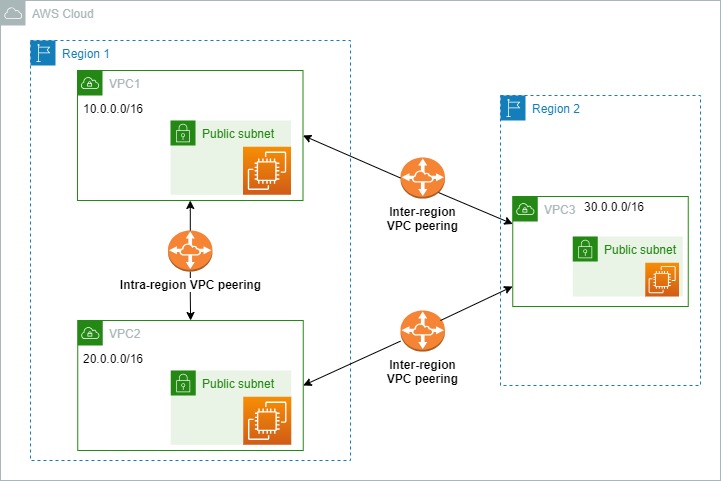
Step 1: Create two VPCs using the configuration in any one region:
Open your account and select
us-east-1any other regionGoto VPC and then create two VPCs
For VPC1:
Your VPCs: VPC settings:
Select Resources to create
VPC onlyName tag - optional:
VPC1IPv4 CIDR:
10.0.0.0/16Create VPC
Subnets: Create subnet
VPC ID: select
VPC1Subnet name:
vpc1subnetAvailability Zone:
us-east-1aor any other as your choiceIPv4 CIDR block:
10.0.0.0/24Create subnet
Internet gateways: Create Internet gateway
Name tag:
vpc1gatewayCreate internet gateway
Attach to VPC: Select
VPC1
Route tables: Create route table
Name - optional:
vpc1routeVPC: Select
VPC1Create route table
Select
vpc1route ID-> SelectRoutes->Edit route->Add routeDestination:
0.0.0.0/0Target: select internet gateway and thenvpc1gatewaySave changes
Select
vpc1route ID-> SelectSubnet associations->Edit subnet associations- Select
vpc1subnetand Save associations
- Select
For VPC2: (in the same region us-east-1)
Your VPCs: VPC settings:
Select Resources to create
VPC onlyName tag - optional:
VPC2IPv4 CIDR:
20.0.0.0/16Create VPC
Subnets: Create subnet
VPC ID: select
VPC2Subnet name:
vpc2subnetAvailability Zone:
us-east-1aor any other as your choiceIPv4 CIDR block:
20.0.0.0/24Create subnet
Internet gateways: Create Internet gateway
Name tag:
vpc2gatewayCreate internet gateway
Attach to VPC: Select
VPC2
Route tables: Create route table
Name - optional:
vpc2routeVPC: Select
VPC2Create route table
Select
vpc2route ID-> SelectRoutes->Edit route->Add routeDestination:
0.0.0.0/0Target: select internet gateway and thenvpc2gatewaySave changes
Select
vpc2route ID-> SelectSubnet associations->Edit subnet associations- Select
vpc2subnetand Save associations
- Select
Step 2: Create EC2 instances for individual VPCs
FOR first EC2 using VPC1
Search and open EC2
Select Instances and Launch instances
Name:
vpc1serverKey pair name - required:
Create new key pairKey pair name:
mykFor putty select .ppk and for Linux or ssh select .pem
Expand Network settings and
EDITasVPC - required: Select
VPC1Subnet: Select
vpc1subnetAuto-assign public IP:
EnableFirewall (security groups): Select
Create security group(Note: You can individually create SG)
Security group name - required:
Region1SGDescription - required:
Its for VPC1 in region 1Inbound Security Group Rules
Add security group rule:
Type:
All ICMP - IPv4Source type:
Anywhere
Launch instances
FOR second EC2 using VPC2
Search and open EC2
Select Instances and Launch instances
Name:
vpc2serverKey pair name - required:
Create new key pairor Selectmykcreated aboveFor putty select .ppk and for Linux or ssh select .pem
Expand Network settings and
EDITasVPC - required: Select
VPC2Subnet: Select
vpc2subnetAuto-assign public IP:
EnableFirewall (security groups): Select
Create security group(Note: You can individually create SG)
Security group name - required:
Region1SG2Description - required:
Its for VPC2 in region 1Inbound Security Group Rules
Add security group rule:
Type:
All ICMP - IPv4Source type:
Anywhere
Launch instances
All Done for Region 1
Step 3: Create VPC in another region as
For VPC3: Change region as us-west-2 or any other region
Your VPCs: VPC settings:
Select Resources to create
VPC onlyName tag - optional:
VPC3IPv4 CIDR:
30.0.0.0/16Create VPC
Subnets: Create subnet
VPC ID: select
VPC3Subnet name:
vpc3subnetAvailability Zone:
us-west-1aor any other as your choiceIPv4 CIDR block:
30.0.0.0/24Create subnet
Internet gateways: Create Internet gateway
Name tag:
vpc3gatewayCreate internet gateway
Attach to VPC: Select
VPC3
Route tables: Create route table
Name - optional:
vpc3routeVPC: Select
VPC3Create route table
Select
vpc3route ID-> SelectRoutes->Edit route->Add routeDestination:
0.0.0.0/0Target: select internet gateway and thenvpc3gatewaySave changes
Select
vpc3route ID-> SelectSubnet associations->Edit subnet associations- Select
vpc3subnetand Save associations
- Select
Step 4: Create an EC2 instance for VPC in that region
FOR EC2 using VPC3
Search and open EC2
Select Instances and Launch instances
Name:
vpc3serverKey pair name - required:
Create new key pairKey pair name:
mykey3For putty select .ppk and for Linux or ssh select .pem
Expand Network setting and
EDITasVPC - required: Select
VPC3Subnet: Select
vpc3subnetAuto-assign public IP:
EnableFirewall (security groups): Select
Create security group(Note: You can individually create SG)
Security group name - required:
Region2SG3Description - required:
Its for VPC3 in region 2Inbound Security Group Rules
Add security group rule:
Type:
All ICMP - IPv4Source type:
Anywhere
Launch instances
Step 5: Connect to any initial server
Change the region:
us-east-1Select the
vpc1serverand copyPublic IPv4 addressFor window user
Download and Open Putty and in session:
- Host Name (or IP address): paste
Public IPv4 address
- Host Name (or IP address): paste
In left Expand
+Connection-> Expand+SSH-> Expand+Auth-> Credentials- Private key file for authentication: browse and choose
myk.ppkthat automatically downloaded while creating key pair
- Private key file for authentication: browse and choose
Click
OpenAccept if any alert box appears and login as:
ec2-userin your case enter the IAM username to connect
For Linux user
Open
Bash terminaland go to the directory where you want to perform the SSH commandLocate the key pair that downloaded automatically while creating as
myk.pemand move to that directoryThen paste the following code:
ssh -i "myk.pem" <IAM-user-name>@<public-ip-address>
Replace <IAM-user-name> and <public-ip-address> with your own.
Try the following command to check the initial connection with the internet
ping google.comAlso, try to ping the public IPs of other servers i.e.
vpc2serverandvpc3serverping <public-ip-address>Replace <public-ip-address> with copied public IP of the server and check connection is established or not.
Step 6: Connect to another server of the same region using the virtual server that we are connected in
For window users only
Open
myk.ppkfrom the downloaded location and copy all contentsUsing PuttyGen or another platform convert it to
pemfor example, let's choose any trusted online converter and copy the contents ofpemfile
If you are a Linux user you already had
pemfile so open it and copy the contentsNow, go to the previously connected server and perform the following command
nano new.pemAnd paste all that you copied using right-click, then Ctrl+O to save and Ctrl+X to exit.
Now. copy the public IP of
vpc2serverand perform the following commandsudo su ssh -i "new.pem" <IAM-user-name>@<public-ip-address>Replace <IAM-user-name> and <public-ip-address> and select yes if any prompt is asked.
Through
vpc1serveryou connected withvpc2serverSimilarly, ping the public IPs of other servers i.e.
vpc1serverandvpc3serverping <public-ip-address>Copy and Replace <public-ip-address> with copied public IP of the server and check connection is established or not.
Step 7: Similarly, Connect to the server of the other region
For window users only
Open
mykey3.ppkfrom the downloaded location and copy all contentsUsing PuttyGen or another platform convert it to
pemfor example, let's choose any trusted online converter and copy the contents ofpemfile
If you are a Linux user you already had
pemfile so open it and copy the contentsNow, go to the previously connected server and perform the following command
nano new.pemAnd paste all that you copied using right-click, then Ctrl+O to save and Ctrl+X to exit.
Now. copy the public IP of
vpc2serverand perform the following commandsudo su ssh -i "new.pem" <IAM-user-name>@<public-ip-address>Replace <IAM-user-name> and <public-ip-address> and select yes if any prompt is asked.
Through
vpc2serveryou connected withvpc3serverlocated in a different regionSimilarly, ping the public IPs of other servers i.e.
vpc1serverandvpc2serverping <public-ip-address>Copy and Replace <public-ip-address> with copied public IP of the server and check connection is established or not.
Which shows the use case of VPC peering.
Close all resources you created

